
Introduction
Open Interpreter is an open source implementation for running an OpenAI Code Interpreter-like environment locally. It lets you execute code with language models on your own computer. For example, you can run Python, JavaScript, and shell commands locally. The interface is ChatGPT-like, and after installation you can start it by running interpreter in a terminal.
This article explains how to run Open Interpreter with a local model on Windows 11. Because it does not work cleanly on Windows 11 in this environment, I also describe how to resolve the error I encountered.
Environment
| Software | Version |
|---|---|
| Windows11 | 22621.2134 |
| Python3 | 3.11.5 |
| pip | 23.2.1 |
| Open Interpreter | v0.1.0 |
Preparation
Installing Python3
Open Interpreter runs on Python. It requires Python 3.10 or later. If you already have a suitable Python environment, skip this step.
-
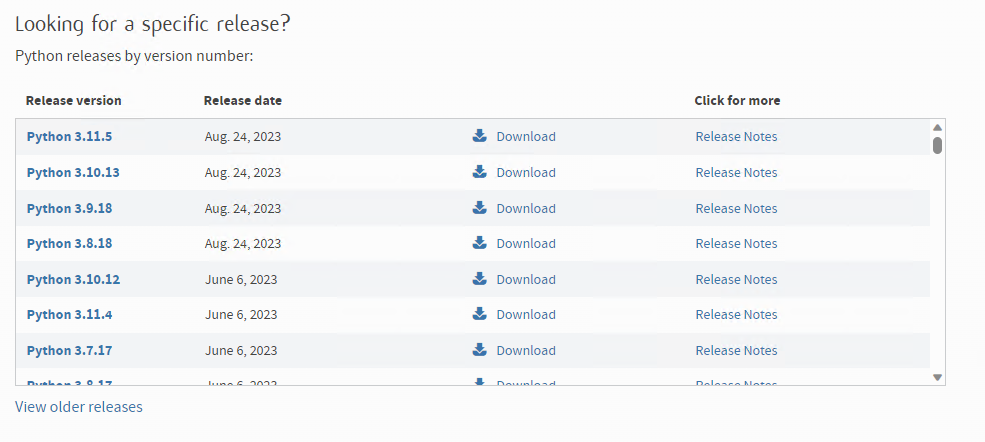
Visit the site below and click the “Download” link for version 3.10 or later. *As of 2023/09/09: Python 3.11.5 https://www.python.org/downloads/
-
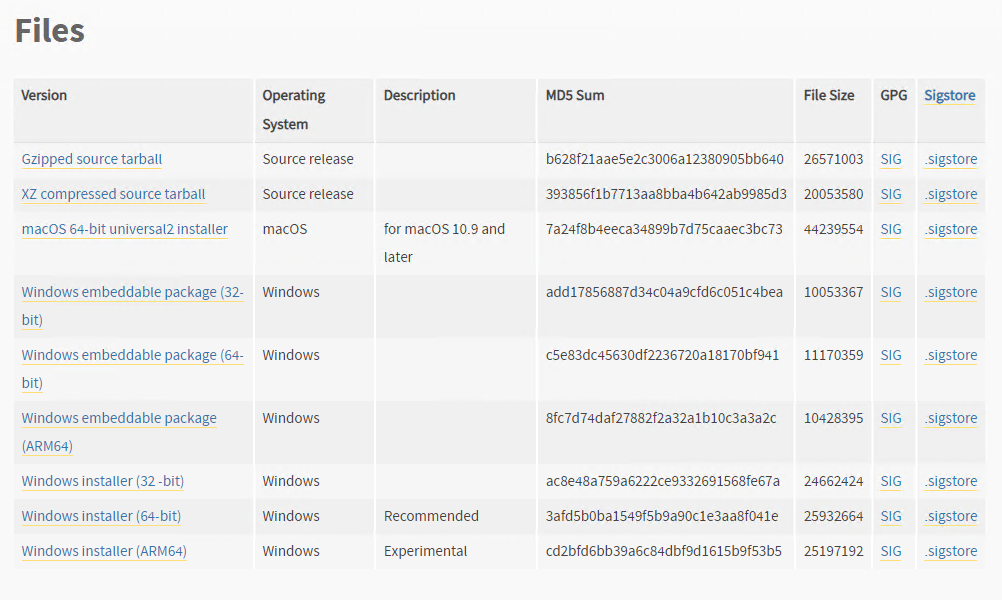
Scroll down the page and download the installer for your environment from the “Files” section.
-
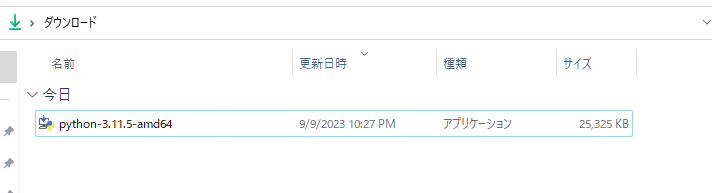
After downloading the installer, launch it.
-
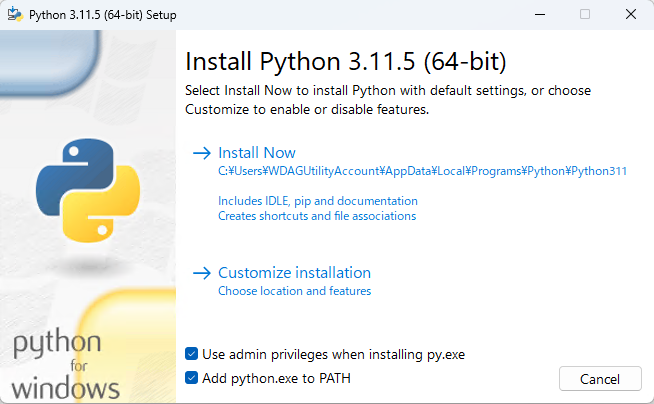
When the installer starts, check “Add python.exe to PATH” and click “Install Now”.
-
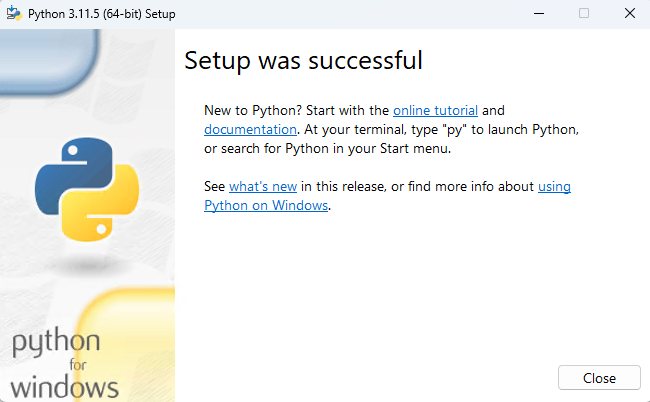
When the installation is complete, exit the installer by clicking “Close”.
Installing Open Interpreter
-
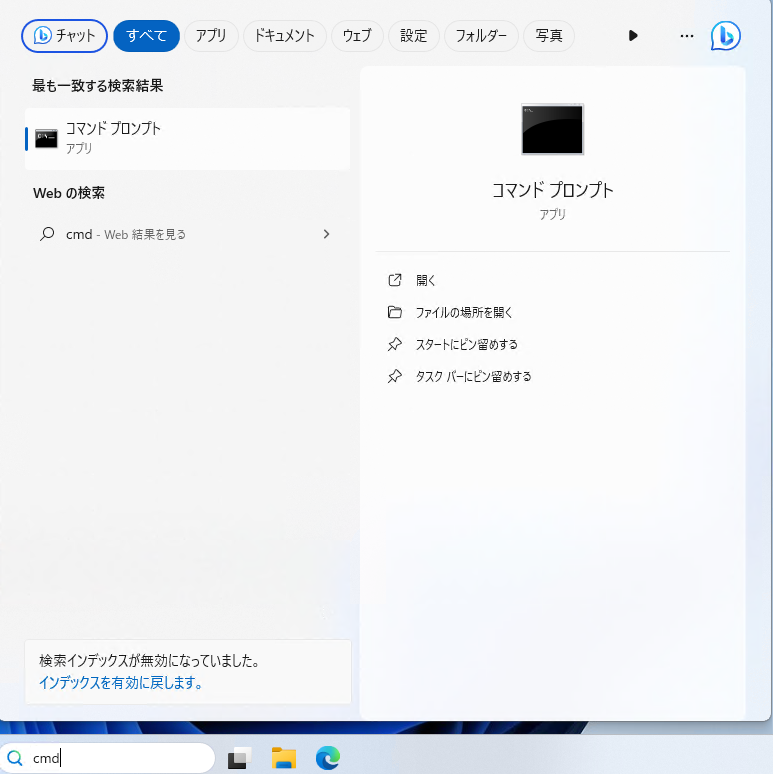
Start Command Prompt or PowerShell.
-
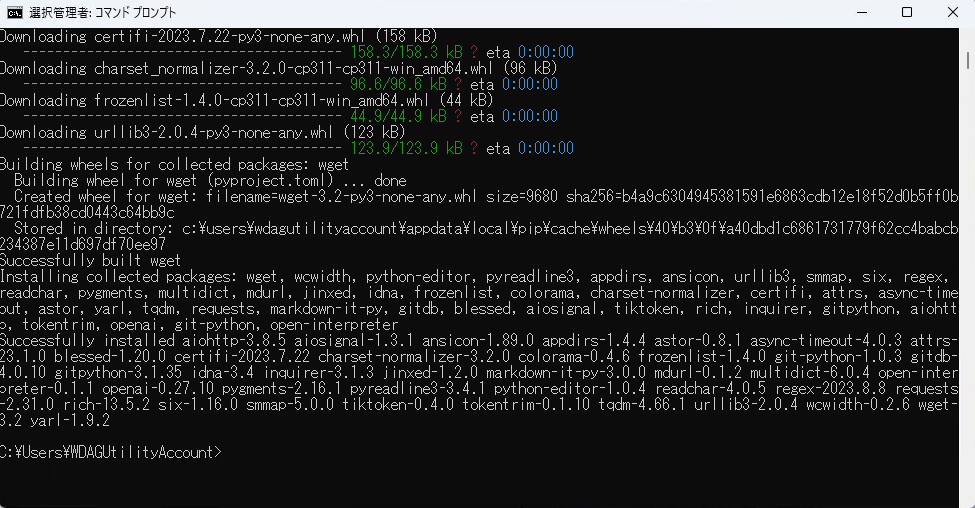
Run the following command to install Open Interpreter.
C:\Users\WDAGUtilityAccount>pip install open-interpreterRunning Open Interpreter
- Execute the following command to start Open Interpreter.
C:\Users\WDAGUtilityAccount>interpreter -y

Welcome to Open Interpreter.

────────────────────────────────────────────────────────────────────────────────────────────────────────────────────────

▌ OpenAI API key not found

To use GPT-4 (recommended) please provide an OpenAI API key.

To use Code-Llama (free but less capable) press enter.

────────────────────────────────────────────────────────────────────────────────────────────────────────────────────────

OpenAI API key: ←Press Enter without typing anything

▌ Switching to Code-Llama...

Tip: Run interpreter --local to automatically use Code-Llama.

────────────────────────────────────────────────────────────────────────────────────────────────────────────────────────

Open Interpreter will use Code Llama for local execution. Use your arrow keys to set up the model.

[?] Parameter count (smaller is faster, larger is more capable): 7B ←Select model
 > 7B
   13B
   34B

[?] Quality (lower is faster, higher is more capable): Medium | Size: 4.24 GB, RAM usage: 6.74 GB ←Select model quality
   Low | Size: 3.01 GB, RAM usage: 5.51 GB
 > Medium | Size: 4.24 GB, RAM usage: 6.74 GB
   High | Size: 7.16 GB, RAM usage: 9.66 GB

[?] Use GPU? (Large models might crash on GPU, but will run more quickly) (Y/n): Y ←Choose whether to use GPU

[?] This instance of `Code-Llama` was not found. Would you like to download it? (Y/n): Y ←Choose whether to install Code-Llama (first time only)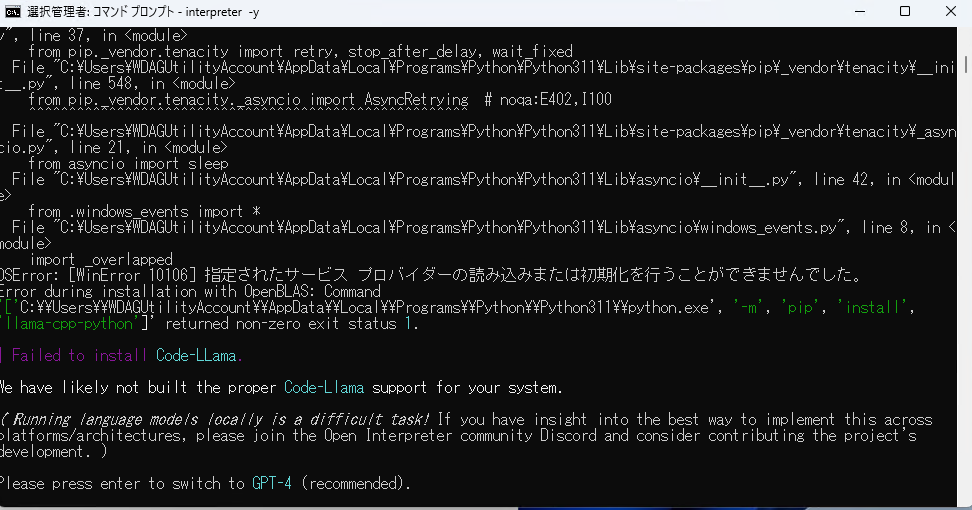
-
However, an error appears at ”[?]
Code-Llamainterface package not found. Installllama-cpp-python? (Y/n): Y”. -
Once done, stop Open Interpreter with Ctrl + C.
How to resolve the Install llama-cpp-python error
On Windows 11, an error appears at ”[?] Code-Llama interface package not found. Install llama-cpp-python? (Y/n): Y”.
To resolve it, you need to manually install llama-cpp-python.
Reference issue: https://github.com/KillianLucas/open-interpreter/issues/63
Below are the steps to install llama-cpp-python on Windows 11.
Installing required packages
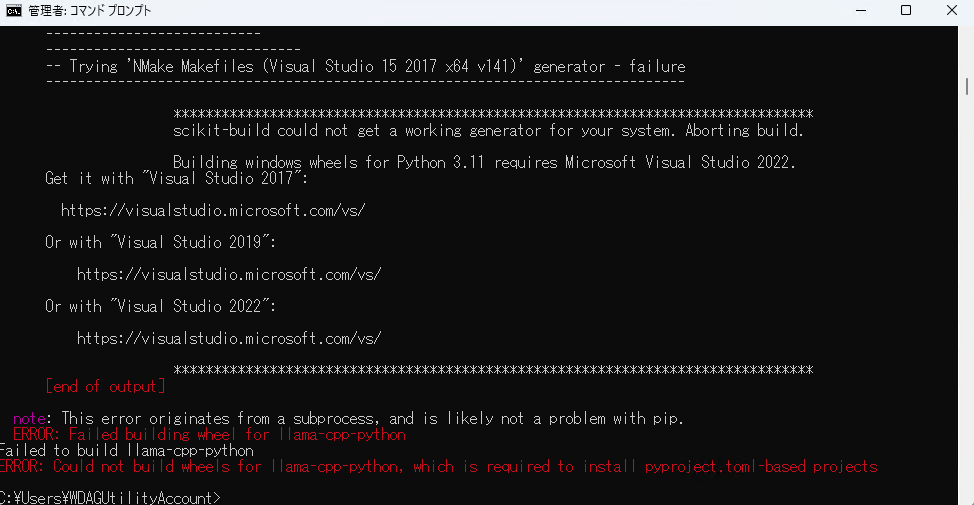
On Windows 11, the following error appears when installing llama-cpp-python.
pip install llama-cpp-python

~~~

    --------------------------------
      -- Trying 'NMake Makefiles (Visual Studio 15 2017 x64 v141)' generator - failure
      --------------------------------------------------------------------------------

                      ********************************************************************************
                      scikit-build could not get a working generator for your system. Aborting build.

                      Building windows wheels for Python 3.11 requires Microsoft Visual Studio 2022.
      Get it with "Visual Studio 2017":

        https://visualstudio.microsoft.com/vs/

      Or with "Visual Studio 2019":

          https://visualstudio.microsoft.com/vs/

      Or with "Visual Studio 2022":

          https://visualstudio.microsoft.com/vs/

                      ********************************************************************************
      [end of output]

  note: This error originates from a subprocess, and is likely not a problem with pip.
  ERROR: Failed building wheel for llama-cpp-python
Failed to build llama-cpp-python
ERROR: Could not build wheels for llama-cpp-python, which is required to install pyproject.toml-based projects
-
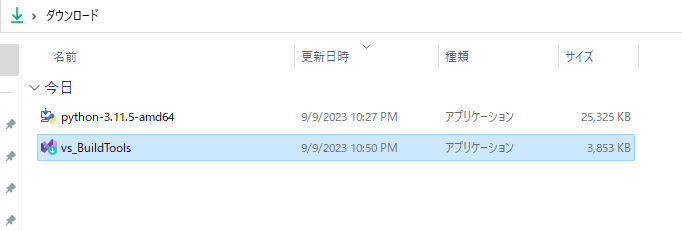
Open the link below, expand “Tools for Visual Studio” in the download list at the bottom of the page, and click “Download” for “Build Tools for Visual Studio 2022”. https://visualstudio.microsoft.com/ja/downloads/

-
Launch the downloaded installer.
-
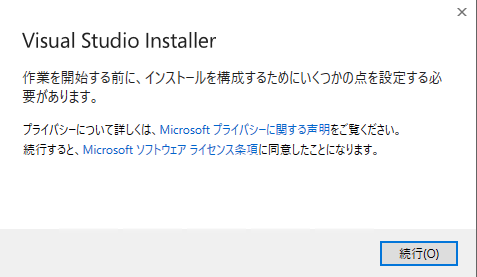
When the installer starts, click “Continue”.
-
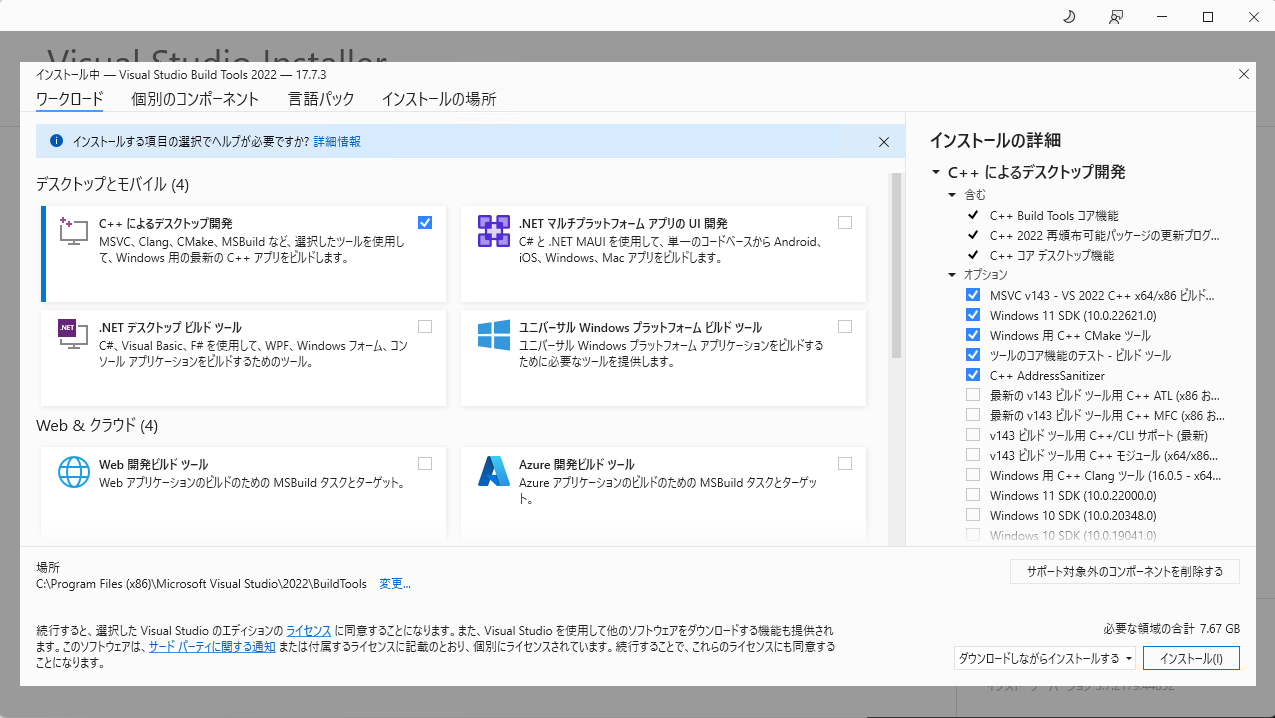
When the screen for selecting workloads opens, select “Desktop development with C++” and click “Install” at the bottom right.
-
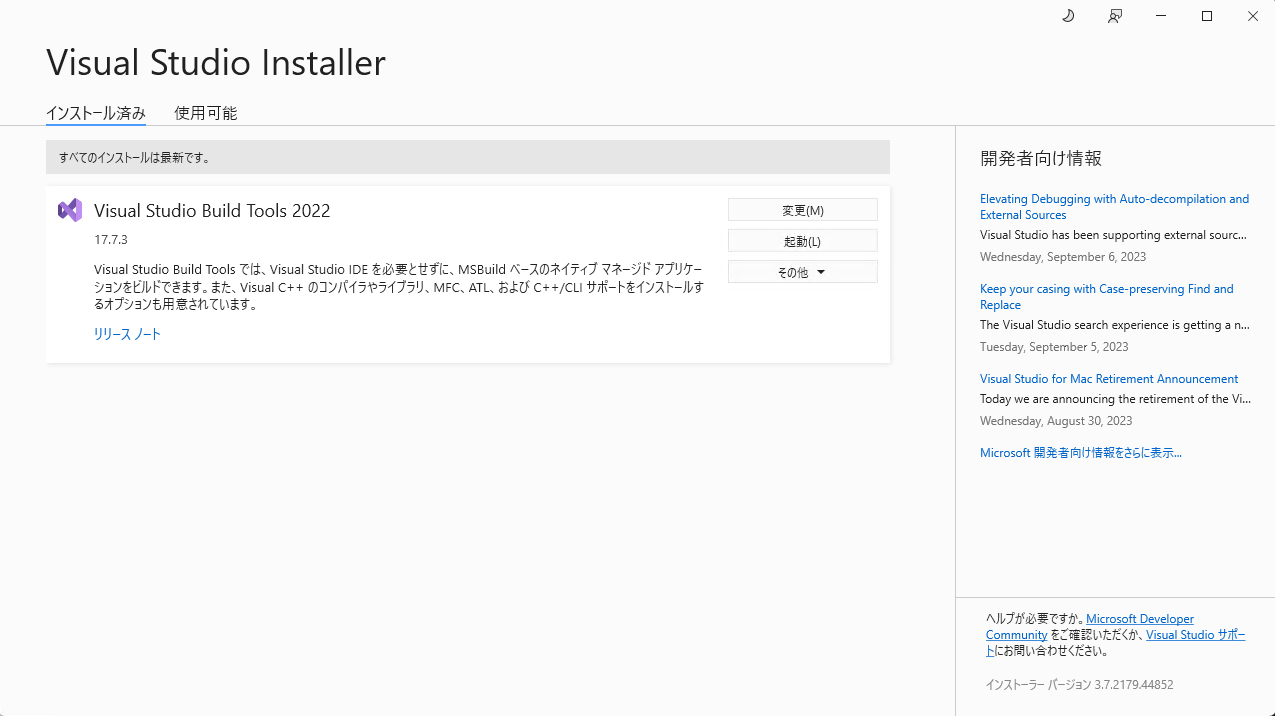
When the installation is complete, the screen will look like the one below. Close the installer.
Installing llama-cpp-python
- Execute the following command from Command Prompt to install
llama-cpp-python. The installation succeeded if “Successfully installed” is displayed.
C:\Users\WDAGUtilityAccount>pip install llama-cpp-python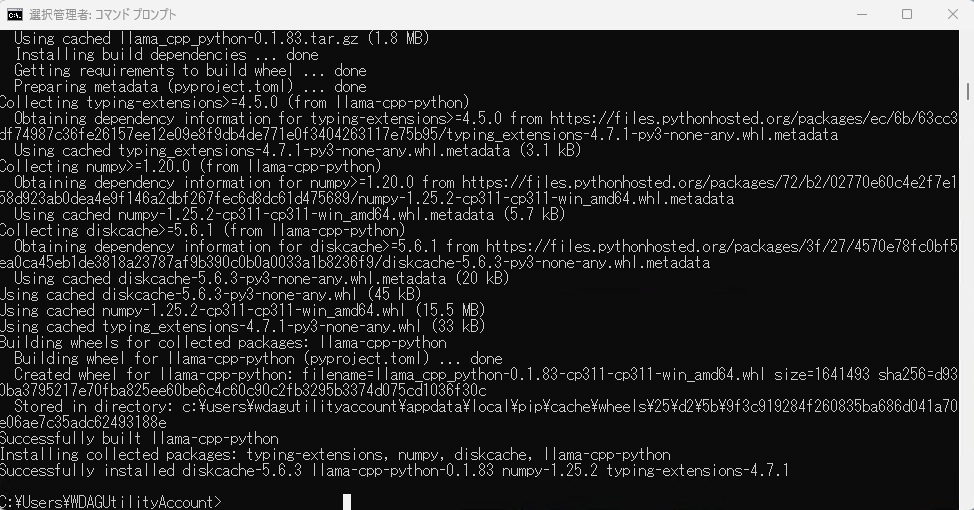
Run Open Interpreter again
Now that the error has been resolved, run it again and check if it works.
- Execute the following command to start Open Interpreter.
C:\Users\WDAGUtilityAccount>interpreter -y

Welcome to Open Interpreter.

────────────────────────────────────────────────────────────────────────────────────────────────────────────────────────

▌ OpenAI API key not found

To use GPT-4 (recommended) please provide an OpenAI API key.

To use Code-Llama (free but less capable) press enter.

────────────────────────────────────────────────────────────────────────────────────────────────────────────────────────

OpenAI API key:

▌ Switching to Code-Llama...

Tip: Run interpreter --local to automatically use Code-Llama.

────────────────────────────────────────────────────────────────────────────────────────────────────────────────────────

Open Interpreter will use Code Llama for local execution. Use your arrow keys to set up the model.

[?] Parameter count (smaller is faster, larger is more capable): 7B
 > 7B
   13B
   34B

[?] Quality (lower is faster, higher is more capable): Medium | Size: 4.24 GB, RAM usage: 6.74 GB
   Low | Size: 3.01 GB, RAM usage: 5.51 GB
 > Medium | Size: 4.24 GB, RAM usage: 6.74 GB
   High | Size: 7.16 GB, RAM usage: 9.66 GB

[?] Use GPU? (Large models might crash on GPU, but will run more quickly) (Y/n): Y


▌ Model set to Code-Llama

>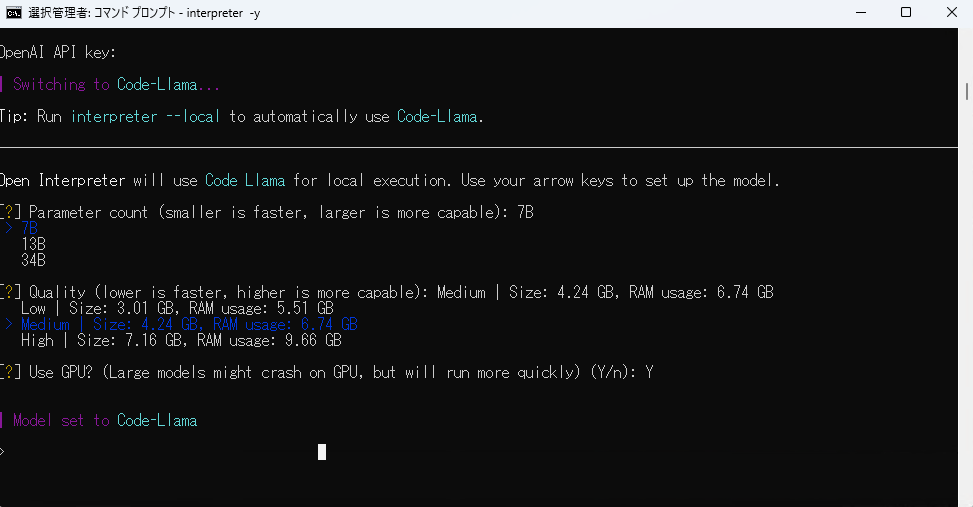
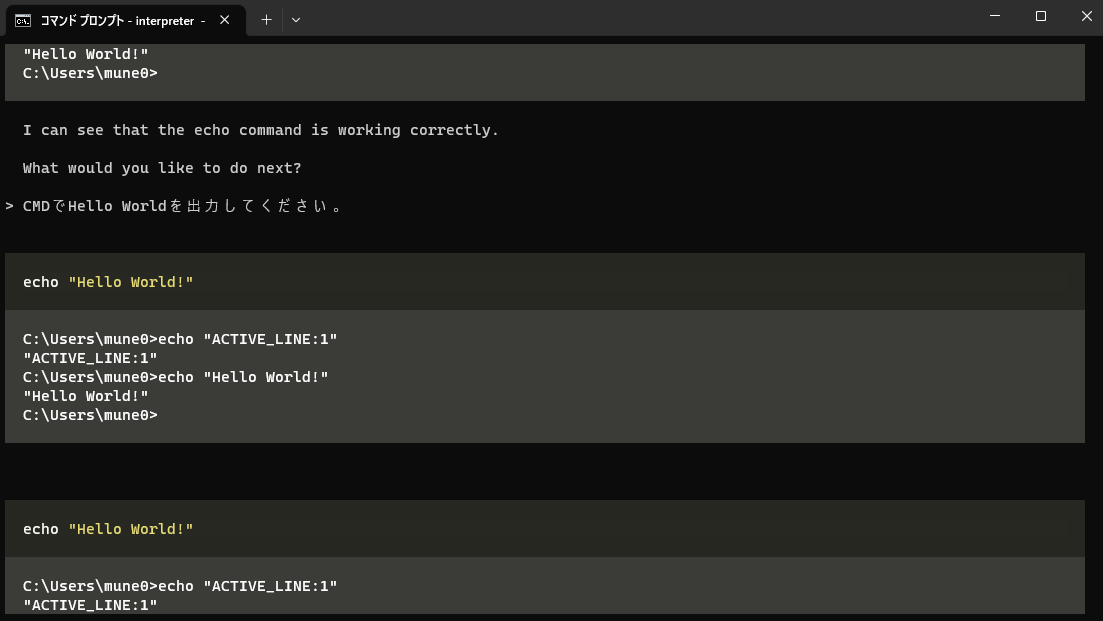
- The earlier error should no longer appear, and Open Interpreter should start normally. You can now use Open Interpreter by typing at the prompt.
Bonus
This section describes how to start Open Interpreter from the desktop.
-
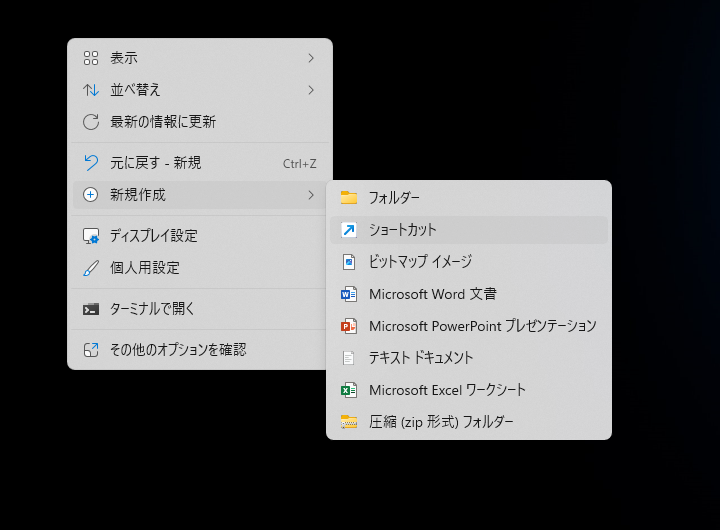
Right-click the desktop and click New > Shortcut.
-
Enter the following command for the shortcut target.
cmd.exe /c interpreter -y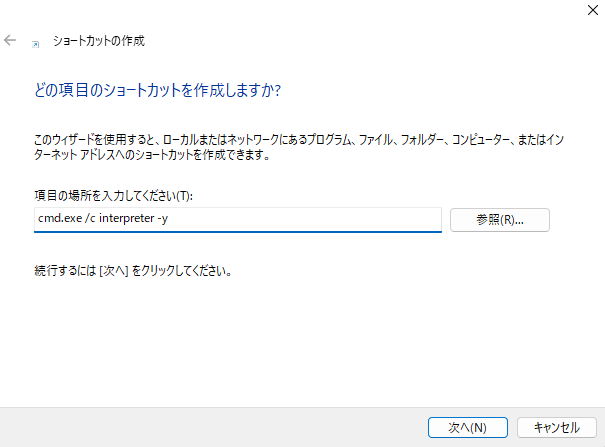
-
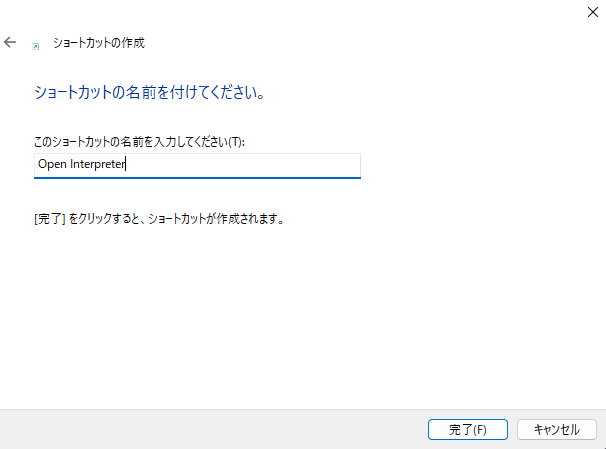
Enter any shortcut name.
-
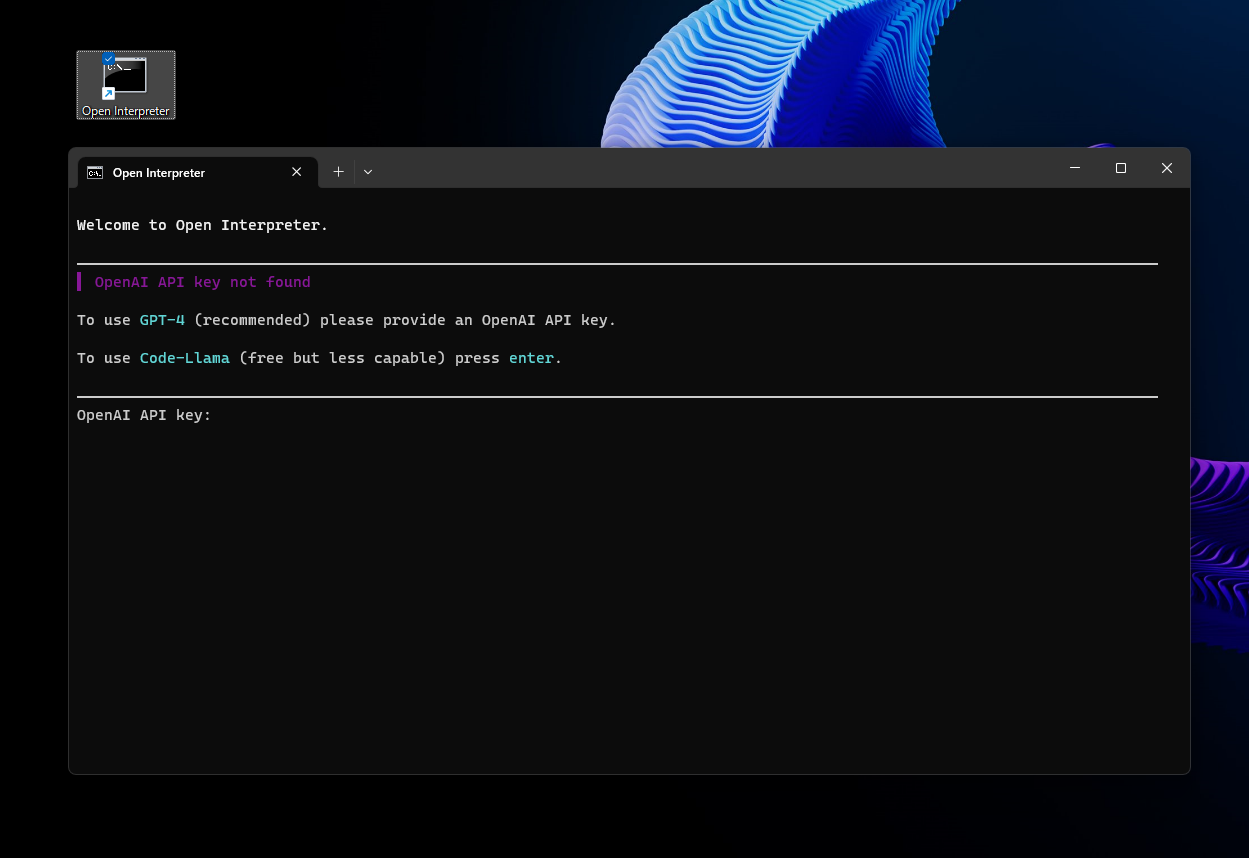
Open Interpreter will start directly when you launch the shortcut from the desktop.
Conclusion
This article introduced how to run Open Interpreter on Windows 11. The setup did not go smoothly at first, so I wrote this article to share the workaround.
P.S.
This issue can be resolved by installing “Visual Studio 2022”. However, Visual Studio is large and unnecessary for people who do not use it regularly. This article therefore shows how to install only the required packages.