
Introduction
This article explains how to build a WordPress environment with Docker Compose.
Prerequisite knowledge
What is WordPress?
WordPress is an open source blogging software. It is developed in PHP and uses MySQL as the database management system. It is often used not only as a blog but also as a content management system (CMS).

Preparation
Prepare the Docker Compose environment
Building WordPress
Installing git
Run the following command to install git.
dnf -y install git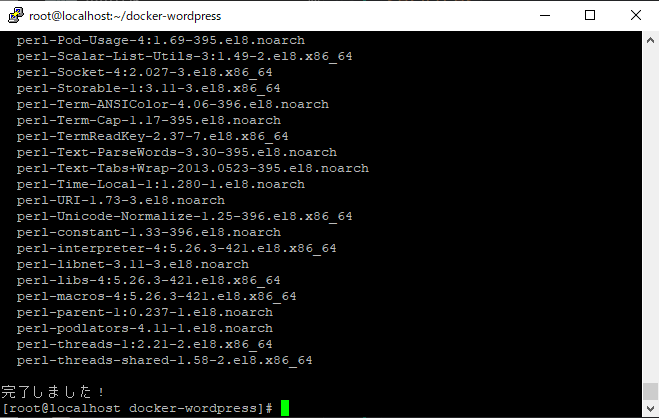
Clone the repository
Move to any directory and run the following command to download the project.
git clone https://github.com/MuNeNICK/docker-wordpress.git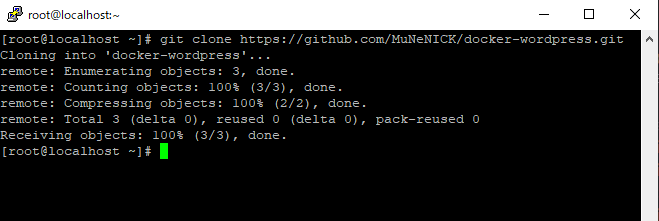
Checking the clone
Run the following command and confirm that the docker-wordpress directory was created.
ls -al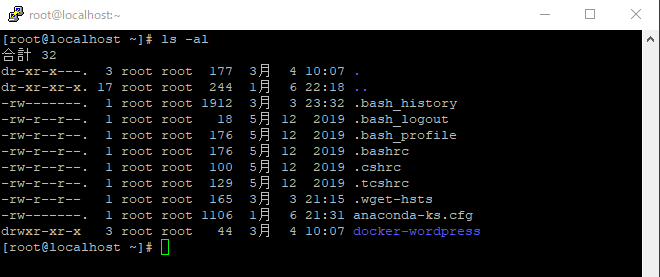
Move to the working directory
Run the following command to move into the docker-wordpress directory.
cd docker-wordpress/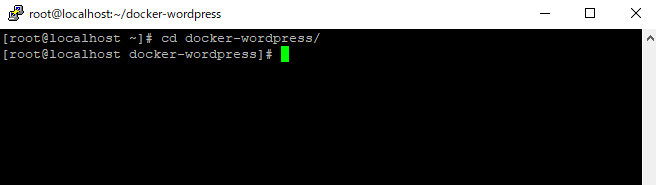
Editing docker-compose.yml
Run the following command to check docker-compose.yml.
cat docker-compose.ymlversion: "3"
services:
db:
image: mysql:5.7
volumes:
- ./db/mysql:/var/lib/mysql
restart: always
environment:
MYSQL_ROOT_PASSWORD: ${ENV_MYSQL_ROOT_PASSWORD}
MYSQL_DATABASE: wordpress_db
MYSQL_USER: user
MYSQL_PASSWORD: ${ENV_MYSQL_PASSWORD}
wordpress:
image: wordpress:latest
volumes:
- ./wordpress/html:/var/www/html
- ./php/php.ini:/usr/local/etc/php/conf.d/php.ini
restart: always
depends_on:
- db
ports:
- 8080:80
environment:
WORDPRESS_DB_HOST: db:3306
WORDPRESS_DB_NAME: wordpress_db
WORDPRESS_DB_USER: user
WORDPRESS_DB_PASSWORD: ${ENV_WORDPRESS_DB_PASSWORD}
phpmyadmin:
image: phpmyadmin/phpmyadmin:latest
restart: always
depends_on:
- db
ports:
- 8888:80Editing .env
Run the following command to set each password.
vi .envChange ChangeMyPassword to a password of your choice.
ENV_MYSQL_ROOT_PASSWORD = ChangeMyPassword
ENV_MYSQL_PASSWORD = ChangeMyPassword
ENV_WORDPRESS_DB_PASSWORD = ChangeMyPassword
Starting Docker Compose
Run the following command to start Docker Compose. *Run this command in the directory where docker-compose.yml was created.
docker-compose up -d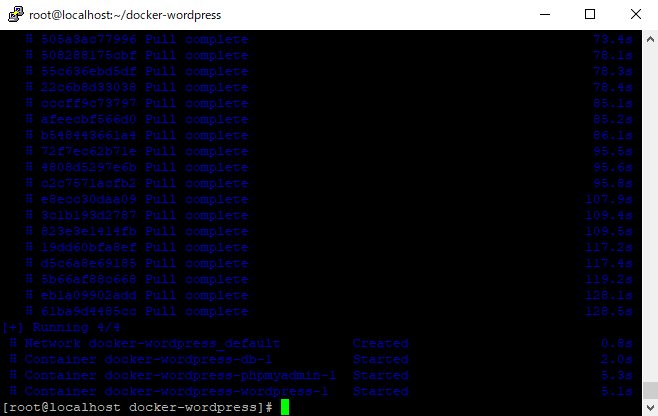
Checking Docker Compose startup
Run the following command to confirm that Docker Compose has started.
docker-compose ps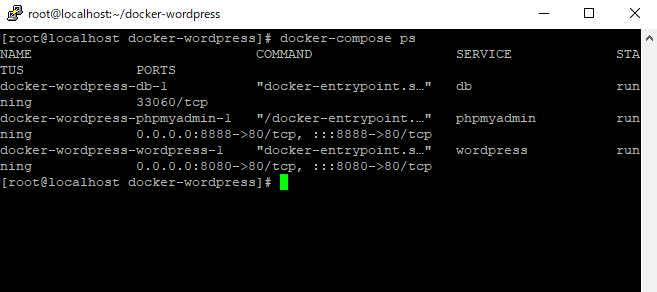
Initial WordPress setup
Open a browser on the client device and access: http://your-server-ip:8080 Verify that WordPress is displayed. Fill in each field and click Install WordPress to complete the initial WordPress setup.
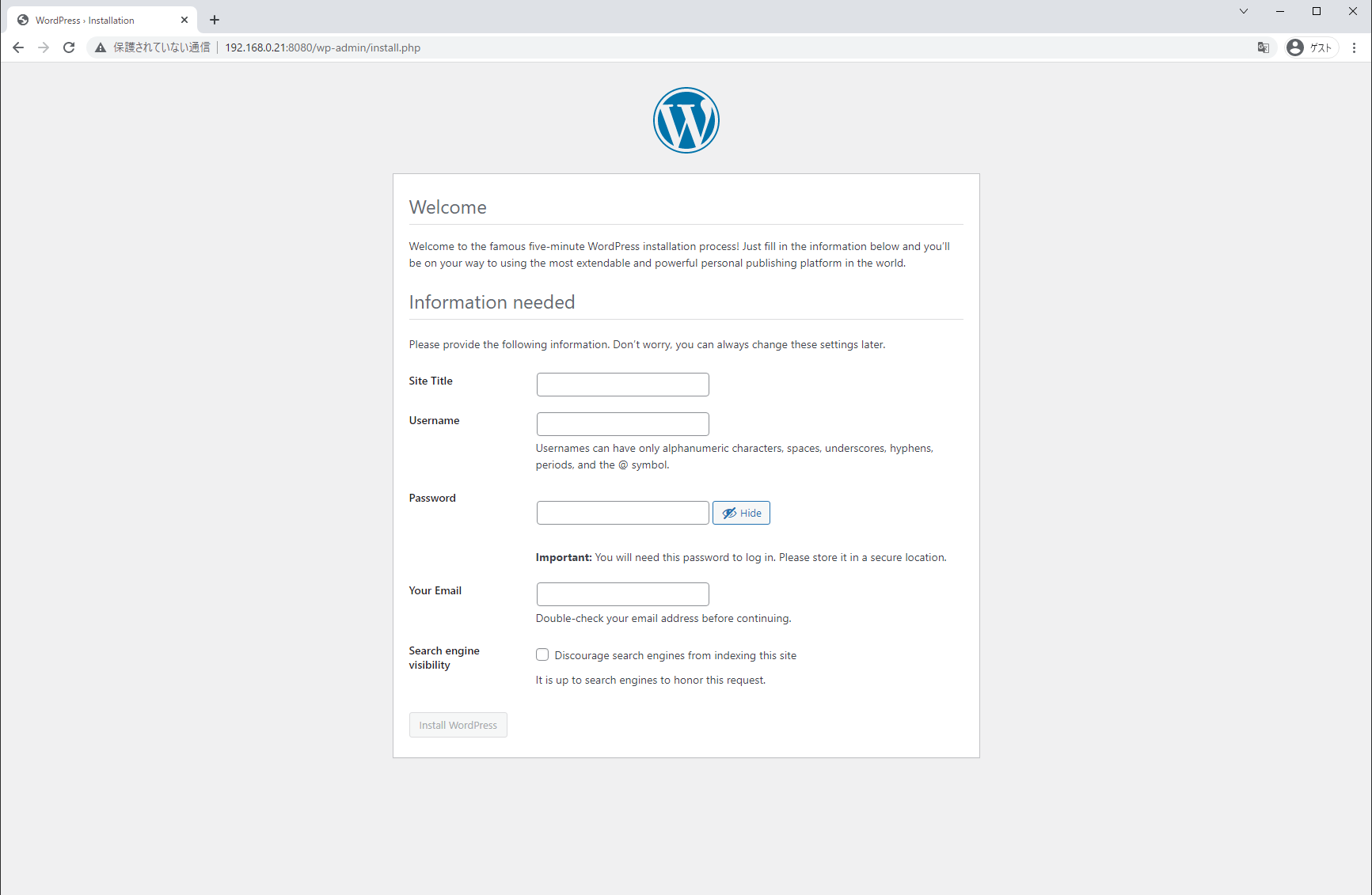
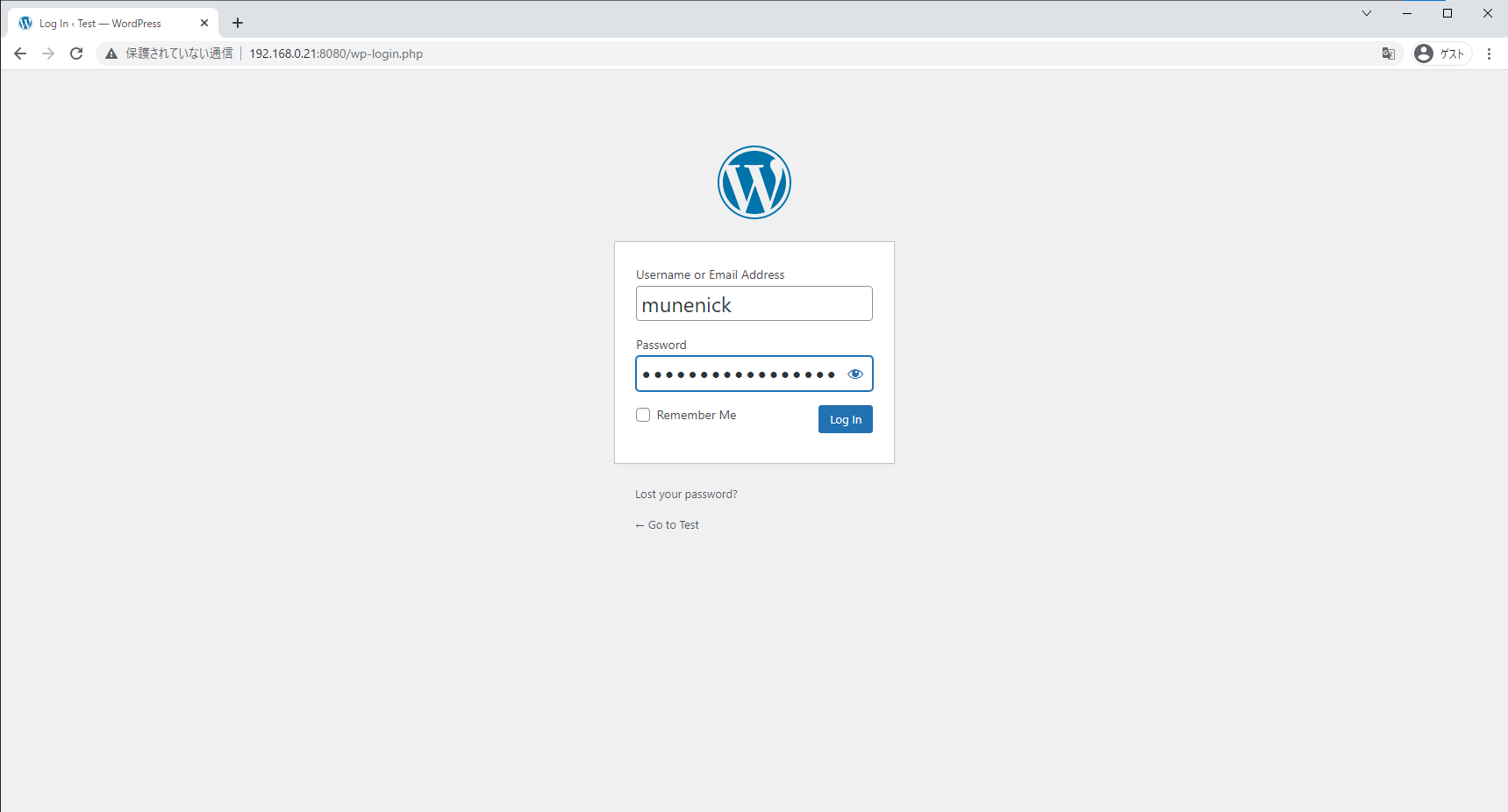
Access WordPress
Enter the username and password you set earlier.
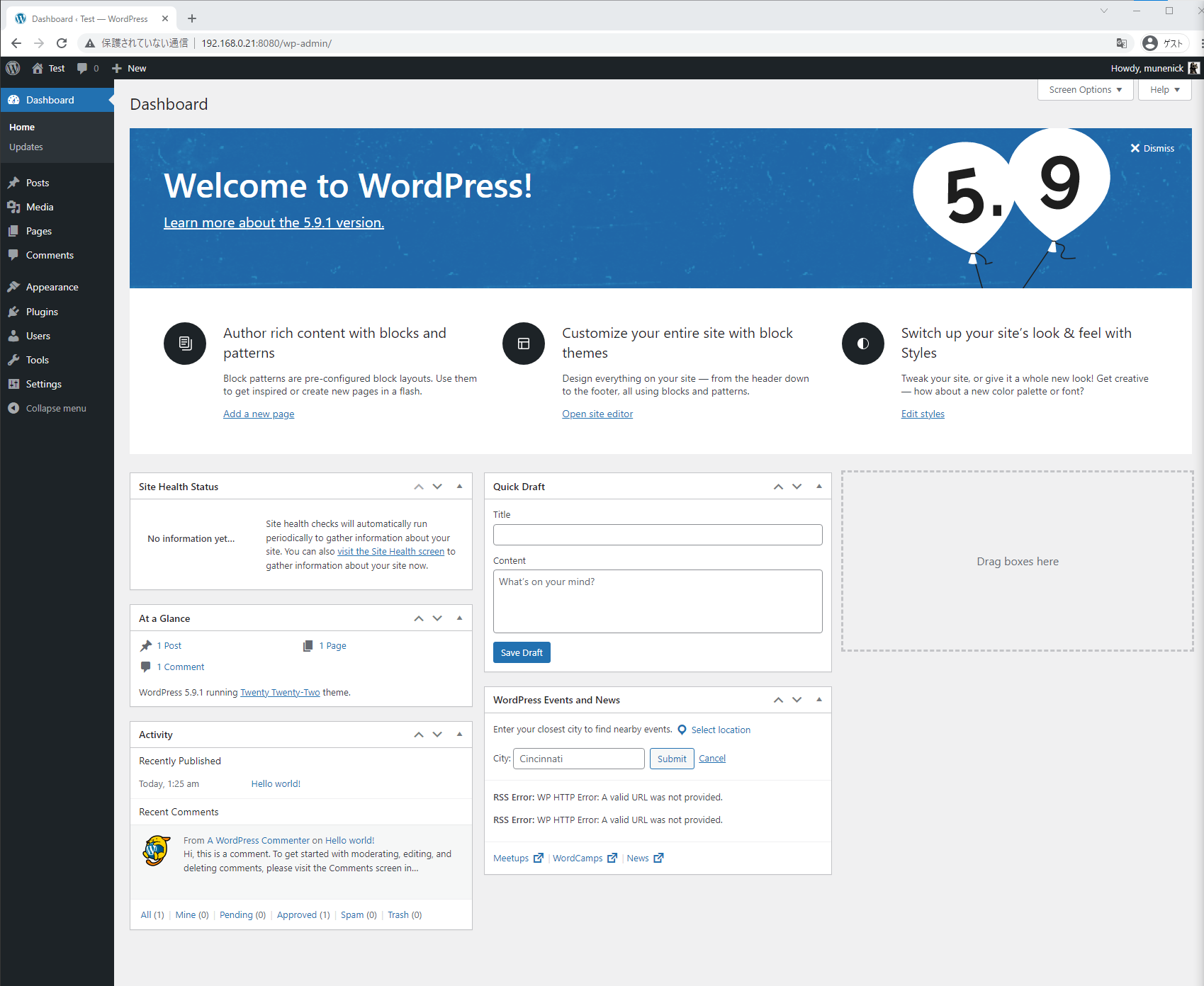
Make sure you can access the administrator screen.
Bonus
Reverse proxy settings
You can configure this by entering the WordPress IP address instead of google.com in the reverse proxy configuration from the article below.
Conclusion
This completes the WordPress setup with Docker Compose. Thank you for following along.